> ## Documentation Index
> Fetch the complete documentation index at: https://docs.shipthing.com/llms.txt
> Use this file to discover all available pages before exploring further.
# Internationalization
> How to add multiple languages to your application.
ShipThing includes a powerful internationalization package that enables you to add multiple language support to your application with minimal configuration. The package handles language detection, routing, and content management through a dictionary-based approach.
## How it works
The internationalization system is built on [Next.js Internationalization](https://nextjs.org/docs/app/building-your-application/routing/internationalization)'s routing system and [Languine](https://dub.sh/0KOndf7)'s translation system.
It's configured by default for the `web` package to:
1. Detect the user's preferred language through browser headers
2. Route users to language-specific paths (e.g., `/en/about`, `/fr/about`)
3. Serve content from language-specific dictionaries
The package handles language detection and matching, ensuring users see content in their preferred language when available.
## Setup
### Set Languine environment variable
To enable automatic translations, simply create a `.env` file in the `internationalization` package and set the `LANGUINE_PROJECT_ID` environment variable.
```env .env theme={"system"}
LANGUINE_PROJECT_ID="your-project-id"
```
### Login languine
```bash Terminal theme={"system"}
npx languine@latest auth login
```
[Languine](https://languine.ai/) offers 500 translation keys for free. If you need more, you need upgrade to a paid plan.
If you don't want to use Languine, you can manually translate your content. You do not need to set the `LANGUINE_PROJECT_ID` environment variable in this case.
## Configuration
The internationalization package is configured through a `languine.json` file that defines:
* Source locale (e.g., `en`)
* Target locales (e.g., `["es", "de"]`)
* Dictionary file locations
## Dictionary Structure
Dictionaries are TypeScript files that export strongly-typed content for each supported language. The type system ensures consistency across translations:
```ts packages/internationalization/dictionaries/[locale].ts theme={"system"}
import type { Dictionary } from '@repo/internationalization';
const dictionary: Dictionary = {};
export default dictionary;
```
There is no need to create a dictionary for any non-source locale, as [Languine](https://languine.ai/) will automatically generate the translations for you.
## Usage
### Translating
To translate your application, you can run the following command:
```bash Terminal theme={"system"}
pnpm translate
```
This will translate all of the content in your application and save the translations to the `dictionaries` folder.
### Frontend
To use the internationalization package, you need to:
1. Maintain a dictionary for your source locale.
2. Import the dictionary into your application.
3. Use the dictionary to render content.
You can find an example of a dictionary in the `web` package:
```tsx apps/web/app/page.tsx theme={"system"}
import { getDictionary } from '@repo/internationalization';
type HomeProps = {
params: Promise<{
locale: string;
}>;
};
const Home = async ({ params }: HomeProps) => {
const { locale } = await params;
const dictionary = await getDictionary(locale);
// ...
};
```
You can change the locale of the application by changing the `locale` parameter in the URL. For example, `https://example.com/en/about` will render the `about` page in English.
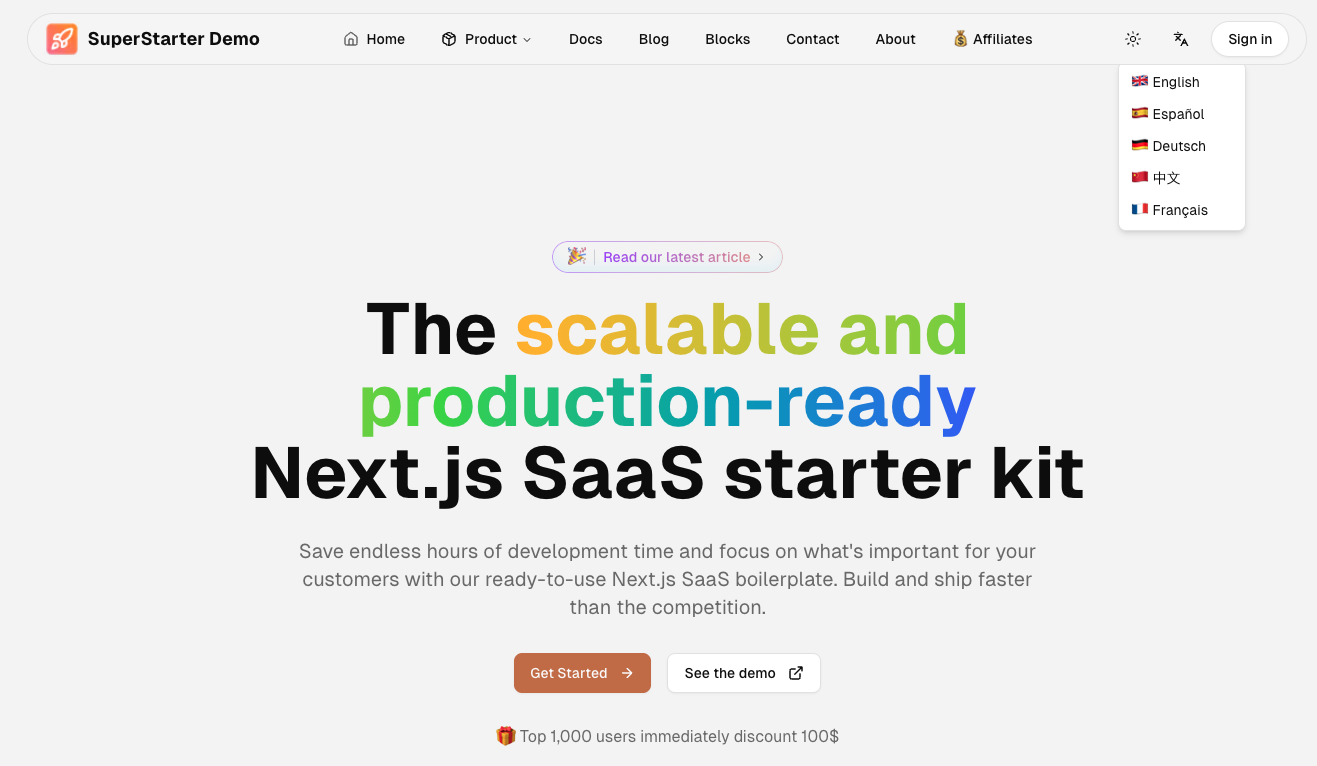
We've already configured the `web` package with a language switcher, so you don't need to worry about it.
 ### Middleware
The internationalization package also includes a middleware component that automatically detects the user's language and routes them to the appropriate language-specific page.
This has already been configured for the `web` package, so you don't need to worry about it.
```tsx apps/web/middleware.ts theme={"system"}
import { internationalizationMiddleware } from '@repo/internationalization';
export default internationalizationMiddleware;
```
### Middleware
The internationalization package also includes a middleware component that automatically detects the user's language and routes them to the appropriate language-specific page.
This has already been configured for the `web` package, so you don't need to worry about it.
```tsx apps/web/middleware.ts theme={"system"}
import { internationalizationMiddleware } from '@repo/internationalization';
export default internationalizationMiddleware;
```